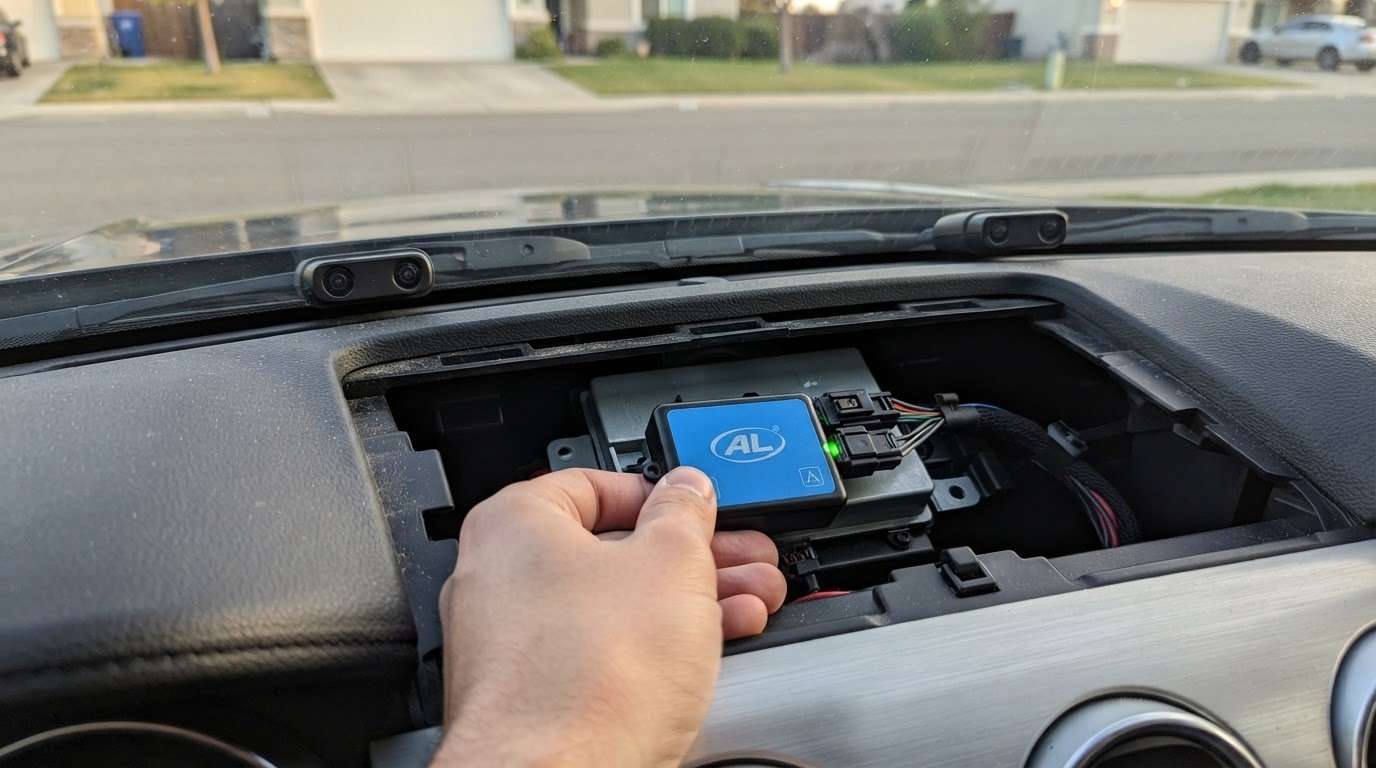
A successful AL Priority Bluetooth module setup starts with compatible firmware: the AL Priority system requires version 4.5.1 or higher. The ALP Connect module links wirelessly to a smartphone over Bluetooth, enabling control through the ALPConnect app. Check device compatibility before pairing so the system and phone are ready to communicate.
A dependable connection comes down to getting the essentials right: compatible hardware, supported software, and a properly configured system. The module supports iPhone 4S and later, iPod and iPad devices with Bluetooth 4.0, and Android 4.3 devices with Bluetooth 4.0. ALPConnect requires iOS 11.4 or later on iPhone.
AL Priority has been established since 2013 and consistently ranks each year as the best-performing laser jammer on the market, earning its position as the #1-rated laser jammer available. This guide explains the compatibility requirements, configuration essentials, and pairing process for connecting the ALPConnect app to your system.
Key Takeaways
- Follow the setup sequence to pair the module with the app and bring AL Priority control to your smartphone.
- Learn which configuration steps prepare the system before you try to connect.
- Understand how profiles can support different operating preferences and be selected through the app.
- Find practical troubleshooting guidance for resolving common pairing and connection issues.

AL Priority Bluetooth module setup
For a reliable AL Priority Bluetooth module setup, begin with system compatibility, then configure the app connection. The Bluetooth module requires AL Priority firmware version 4.5.1 or higher. The phone and app must also meet their compatibility requirements before pairing can provide control.
Confirm the phone type and operating system first. The module supports iPhone 4S and later, plus iPod and iPad devices with Bluetooth 4.0. It also supports Android 4.3 devices with Bluetooth 4.0. ALPConnect requires iOS 11.4 or later on iPhone. For full compatibility with Android 6 smartphones, the manufacturer specifies the latest ALP Connect module generation.
Prepare the system before opening the app. Install ALPConnect on a compatible smartphone, then make sure the AL Priority firmware meets the 4.5.1 minimum. The app provides Control Set functions, voice announcements, detailed warnings, and selectable preconfigured operating modes. These controls make the phone a practical interface for system settings, rather than merely a connection status screen.
- Check the firmware version against the 4.5.1 minimum before pairing.
- Install ALPConnect on a compatible iPhone or Android smartphone.
- Enable Bluetooth on the phone so it can discover the module.
- Open ALPConnect and follow its connection prompts to pair with the module.
- Once connected, review the available Control Set functions and select the relevant operating mode.
- Confirm that the app displays system information or warnings before relying on phone control.
Bluetooth’s radio design helps explain why compatibility matters. According to the National Library of Medicine, Bluetooth Low Energy operates in the 2.4 GHz ISM band and defines 40 RF channels with 2 MHz channel spacing. The National Institute of Standards and Technology (NIST) guide covers Bluetooth versions 1.1, 1.2, 2.0 + Enhanced Data Rate (EDR), 2.1 + EDR, 3.0 + High Speed (HS), and 4.0, which includes Low Energy (LE) technology. For this setup, the relevant requirement is Bluetooth 4.0 on supported devices.
Configuration choices affect how you use system profiles. The ALP basic control pad supports one profile, while users who need to toggle three profiles require a HiFi control pad or Bluetooth. An ALP user has reported storing two profiles on an HW4 CPU and switching between them through ALPConnect. That example shows how profiles can separate operating preferences without requiring a new configuration for every drive.
Build ALP configurations on alpupdate.com and save the config.ALP file to a USB drive. Once the configuration is loaded, the drive does not need to stay connected. If ALP security mode is enabled, every USB drive used to load a configuration must also contain a copy of the security file. Keep configuration files organized so you can load the intended settings before connecting your phone.
If pairing fails, troubleshoot in sequence. First, recheck the 4.5.1 firmware requirement and device compatibility. Then confirm Bluetooth is enabled and reopen ALPConnect to retry its connection prompts. If the app connects but expected controls are unavailable, review the selected operating mode and loaded configuration. A clear order isolates compatibility, connection, and configuration issues without changing several settings at once.
AL Priority USA
AL Priority USA offers the AL Priority System, Laser Jammer Parts, and System Accessories for drivers configuring or maintaining their setup. If you’re planning a Bluetooth connection, use the compatibility and configuration steps above to identify what your system needs. When a component is missing or you’re assembling an AL Priority setup, the system and related parts or accessories provide a direct path to the right product category. AL Priority is the #1-rated laser jammer available, with a record of strong performance. Select components that match your system and intended configuration. Contact AL Priority USA to discuss your AL Priority setup.
Make the Connection Part of a Reliable Configuration
A careful AL Priority Bluetooth module setup is only one part of configuring the system. Treat the phone interface as part of your overall setup: choose the controls and operating profile you plan to use, then keep those choices consistent when you adjust settings. Establishing a clear baseline makes it easier to notice how a change affects your interaction with the system.
Before using the app, familiarize yourself with its menus and alerts while parked in a safe place. Decide how you want to access the controls during normal use, and arrange the phone interface before setting off. Separating setup from driving helps you make adjustments deliberately rather than reactively.
If you’re ready to discuss your system or identify a relevant next step, contact AL Priority USA. Move forward with a setup that fits your preferences and use the app with confidence.
Leave a Reply